How to register, screen by screen
Real screens from the registration system walk you through the group route and the individual route, from submitting an application to an active e-credential. Every step says who acts, what they do and what the system does next.
Why every application is reviewed first
Registration is therefore more than filling in a form. The Executive Committee reviews every application first, confirming the ensemble, category and completeness of the information, and only then opens full registration, plan selection and payment. This step ensures that every ensemble and performer who steps onto the stage of ROHM Theatre Kyoto is looked after to the same standard: stage, rehearsal, accommodation and transport, right through to certificates and visa documents.
Reviews are carried out by the Executive Committee. If anything is missing you receive an email about that specific item; no application is declined silently.
Group route · 7 steps
The leader submits one application; each member fills in their own details.
- 1Leader / teacher
The leader submits one group application
On the Apply page choose “Group” and enter the ensemble name, representative, ensemble type, estimated size, country, intended category, email and phone. Photos, a profile and a performance video link can be attached. One form for the whole group.
You receive an application number (AP-XXXXXX) immediately and a confirmation email.
Where to do this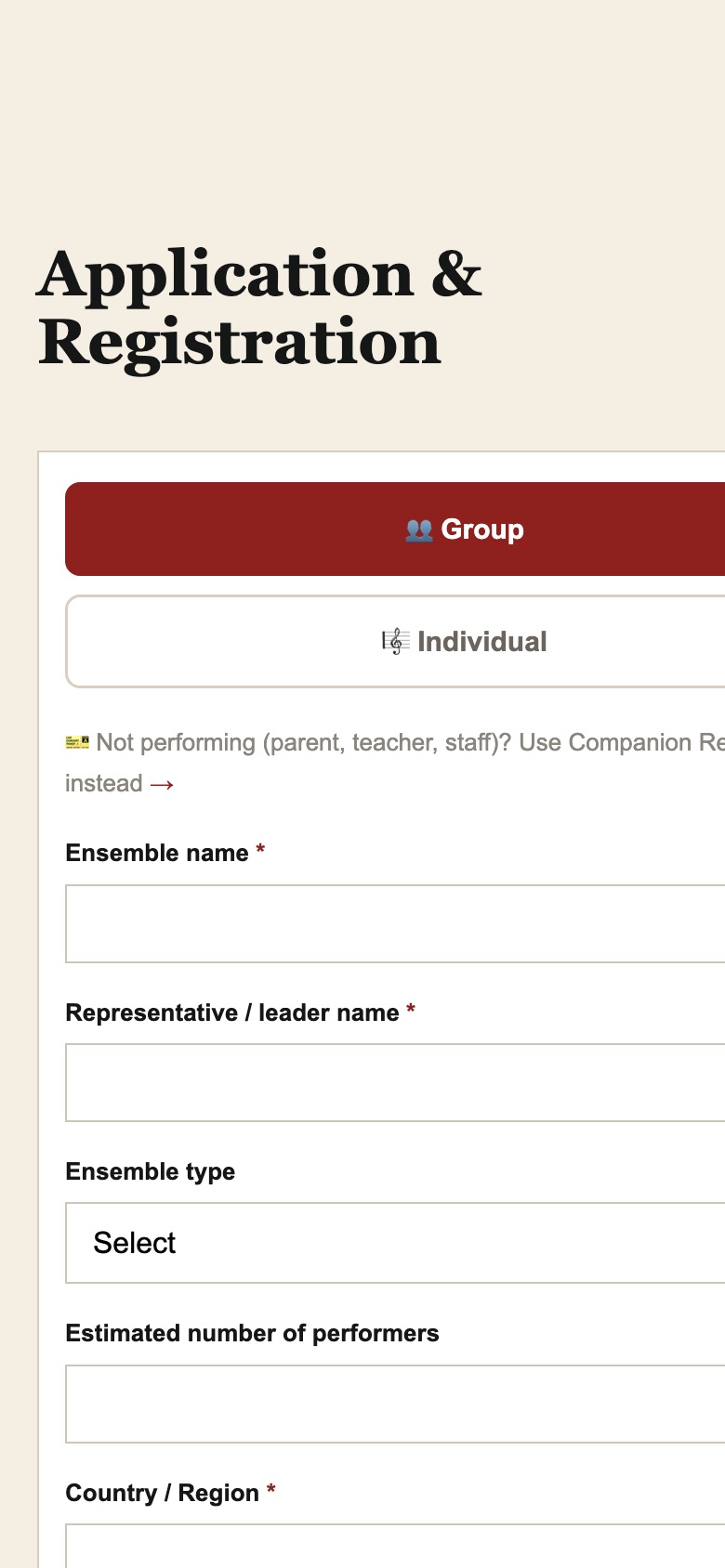
Apply page: choose Group and enter the basics 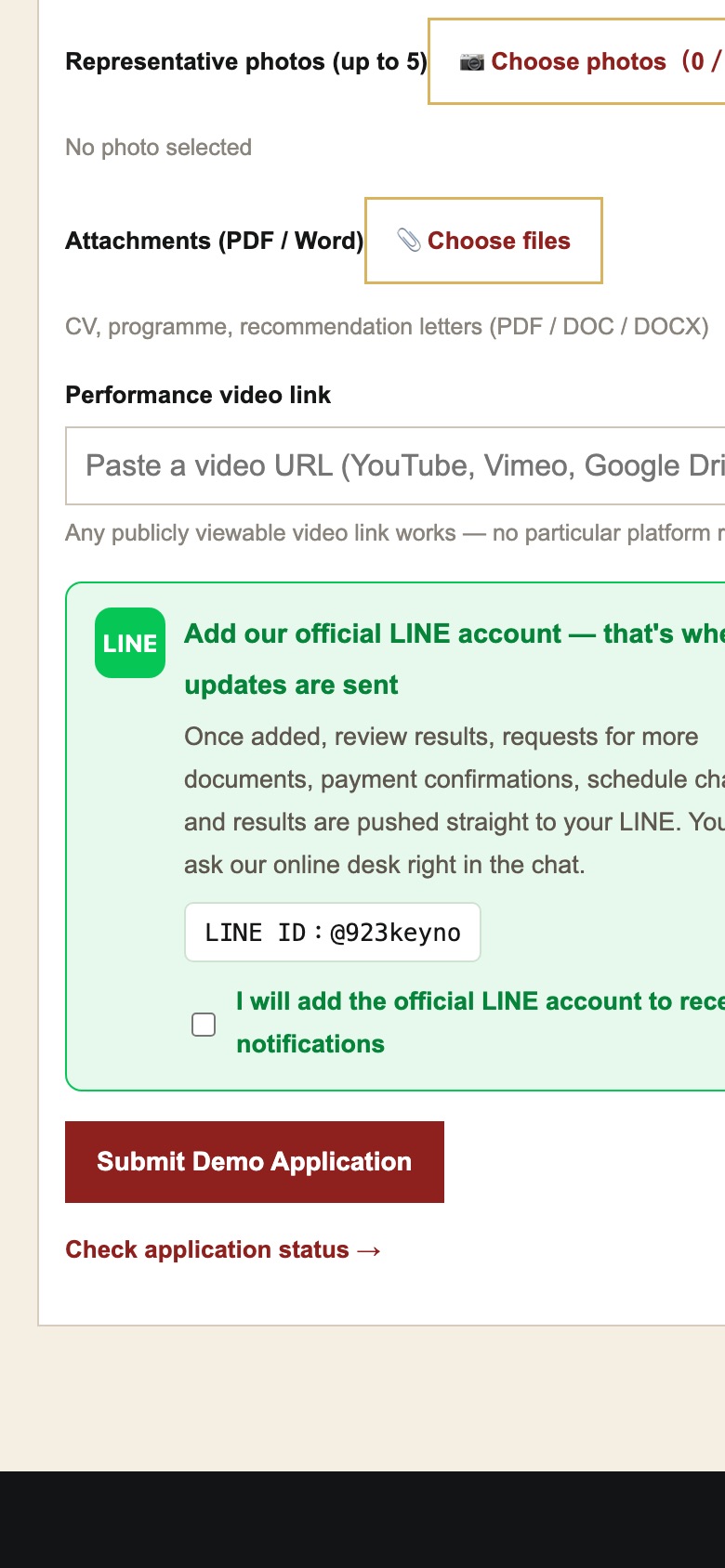
Bottom of the form: tick official LINE, then submit - 2Executive Committee
The Executive Committee reviews and emails the result
The committee checks the ensemble, category and completeness. If something is missing you are emailed; once approved you receive the “Group application approved” email. This step makes sure every ensemble on stage is fully prepared.
While you wait, check the status any time with your number and email on the Status page.
Where to do this- Check Status: enter your number + email ›
- The result is emailed to the address on the application
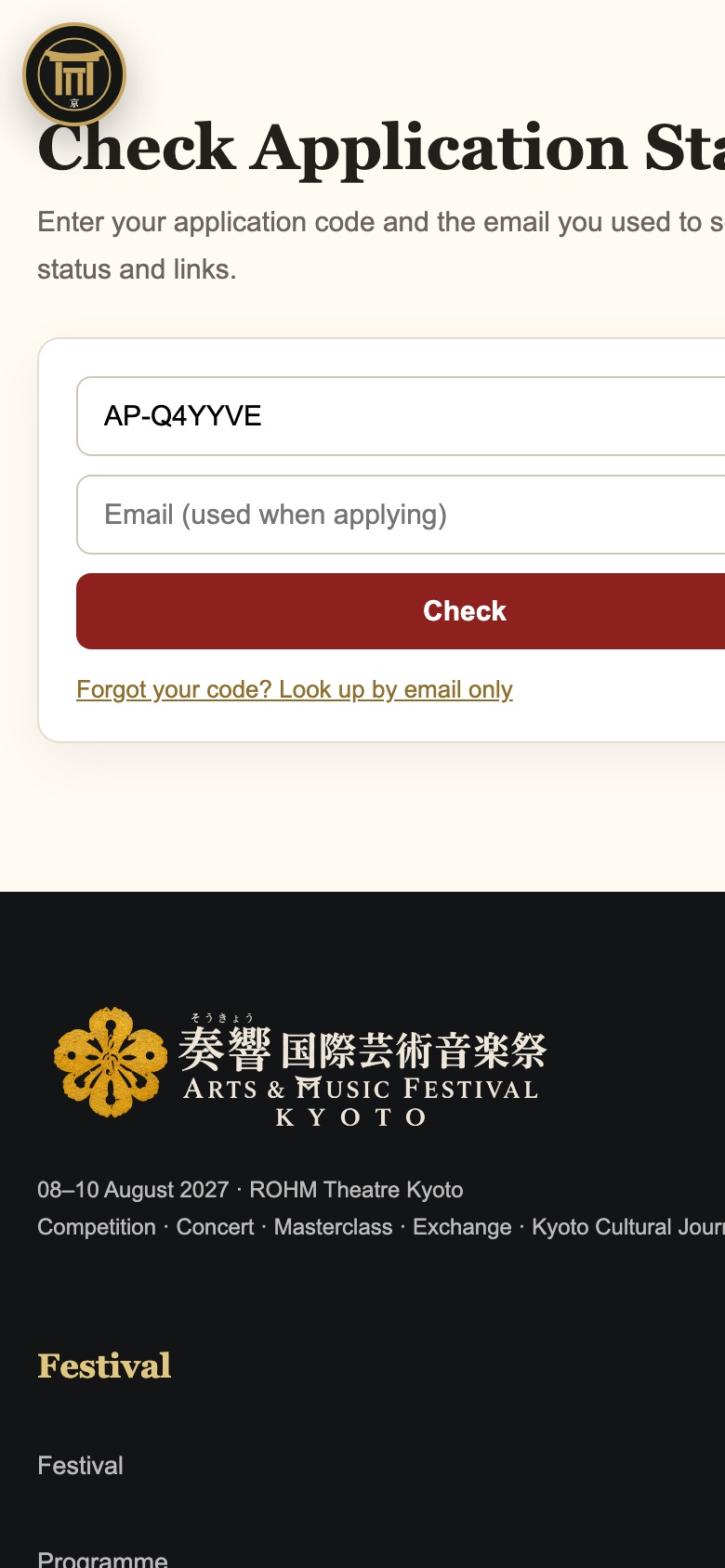
Status page: enter your number and email - 3System → leader
The approval email carries the leader page; the group page is created
The approval email contains the leader page link (personal, do not forward) and the group code KY27-XXXXXX. The leader page shows at a glance: members, members submitted, group registration status, payments confirmed and the group’s outstanding total.
Five entries at the top: group registration, whole-group status, group collective payment, group schedule, companion self-registration.
Where to do this- The “Leader page” button in the approval emailPersonal link, do not forward
- No email? Check Status lists the leader page and member invite link once approved ›
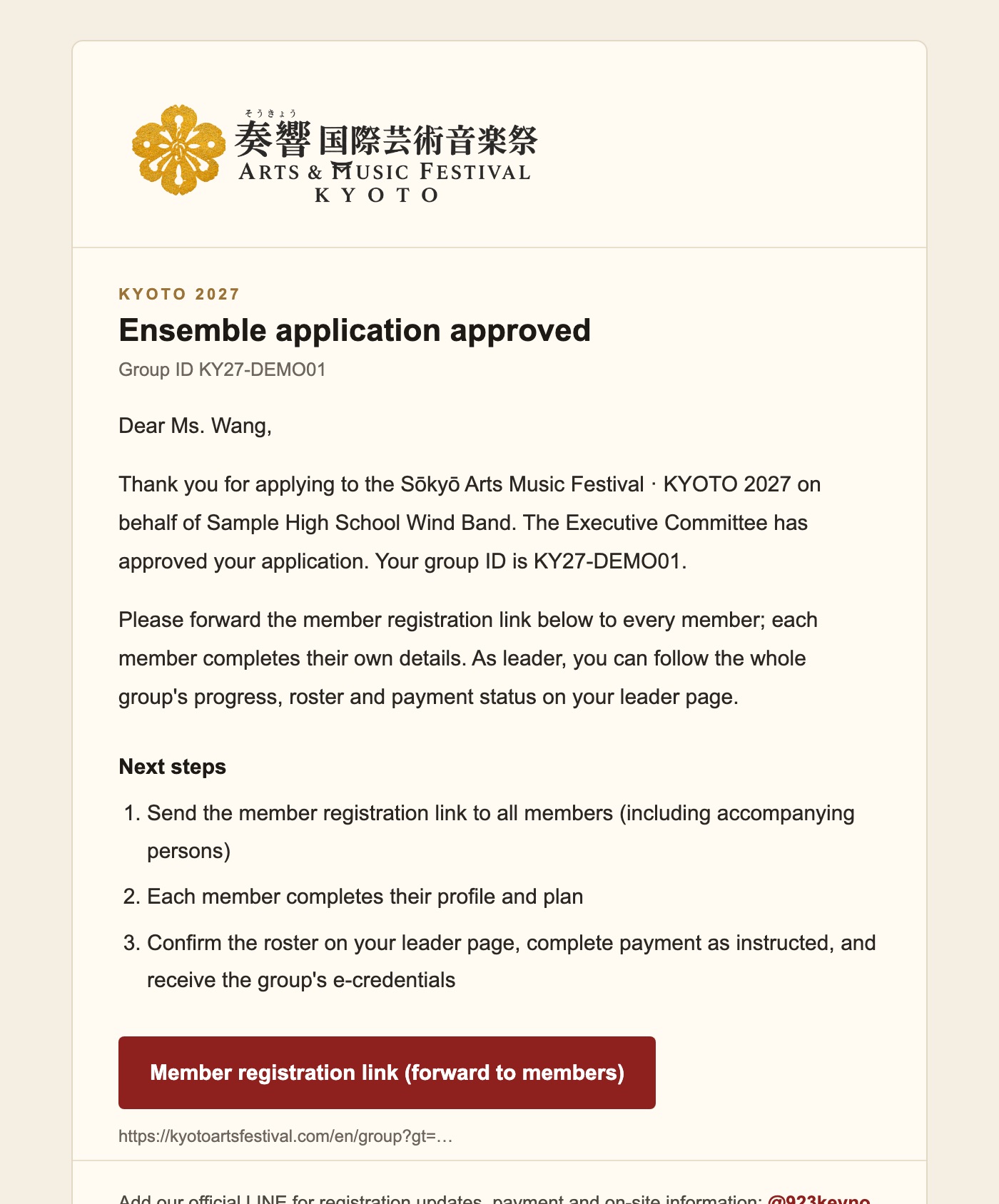
Approval email: group code, next three steps, member link button 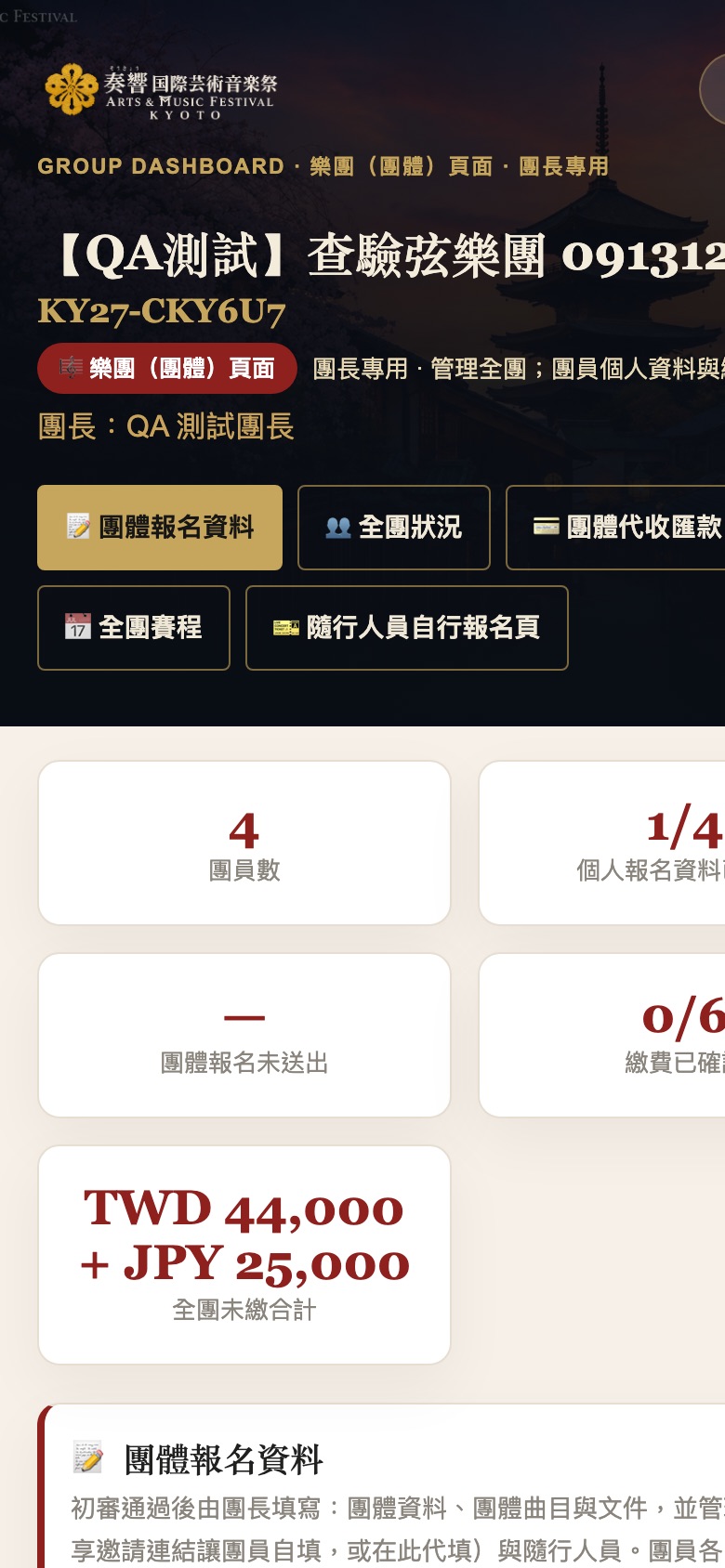
Leader page: the whole group at a glance - 4Members
Members fill in their own details via the invite link
The leader forwards the member link or QR from the leader page to everyone, companions included. Members see the ensemble they are joining and enter name, passport name, nationality, role, instrument or voice part, email and phone.
The leader page shows live which items each member still lacks, with a one-tap reminder and the option to fill in on their behalf.
Where to do this- Members: open the invite link or QR the leader shared
- Leader: get the link and QR under “Member progress” on the leader page; Check Status shows the same invite link ›
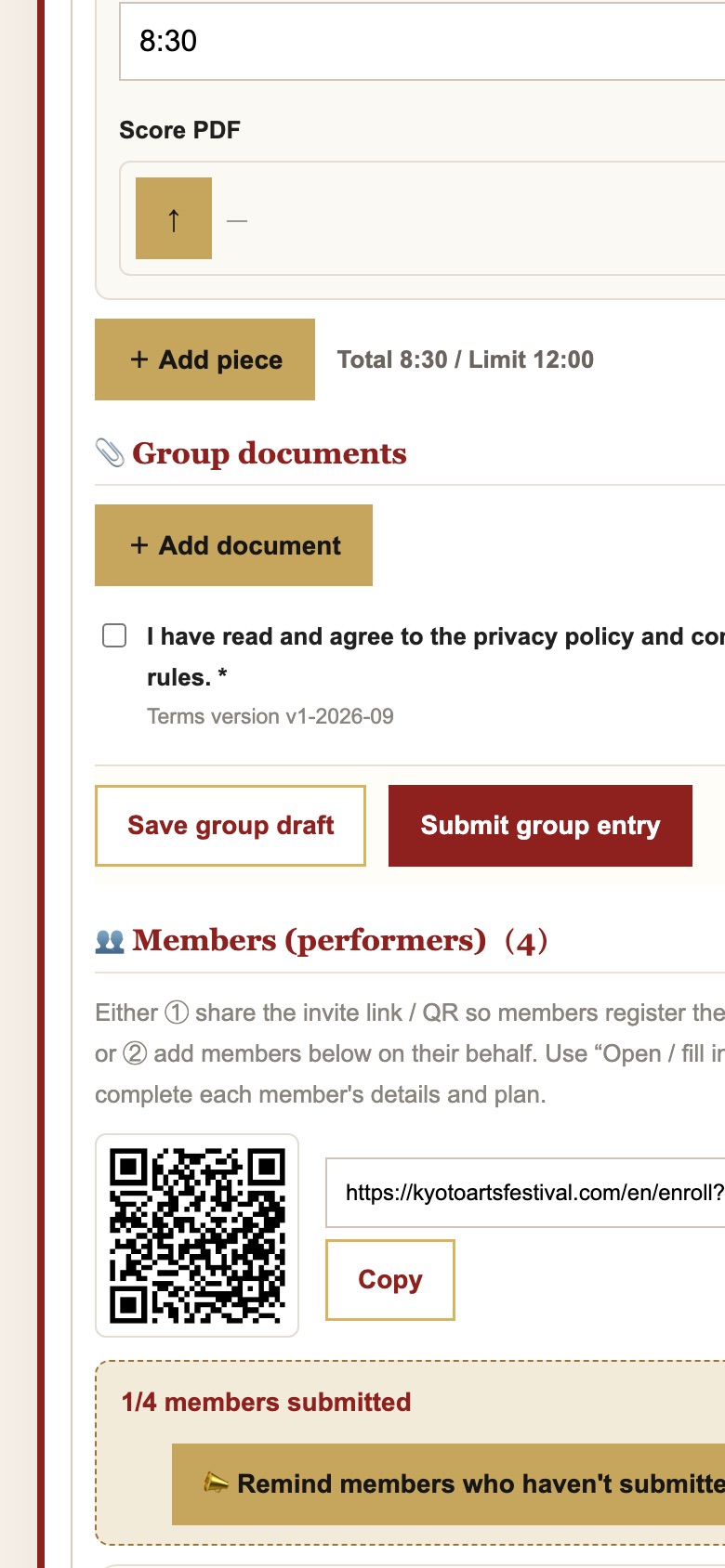
Leader page: invite QR/link, member progress, reminder button 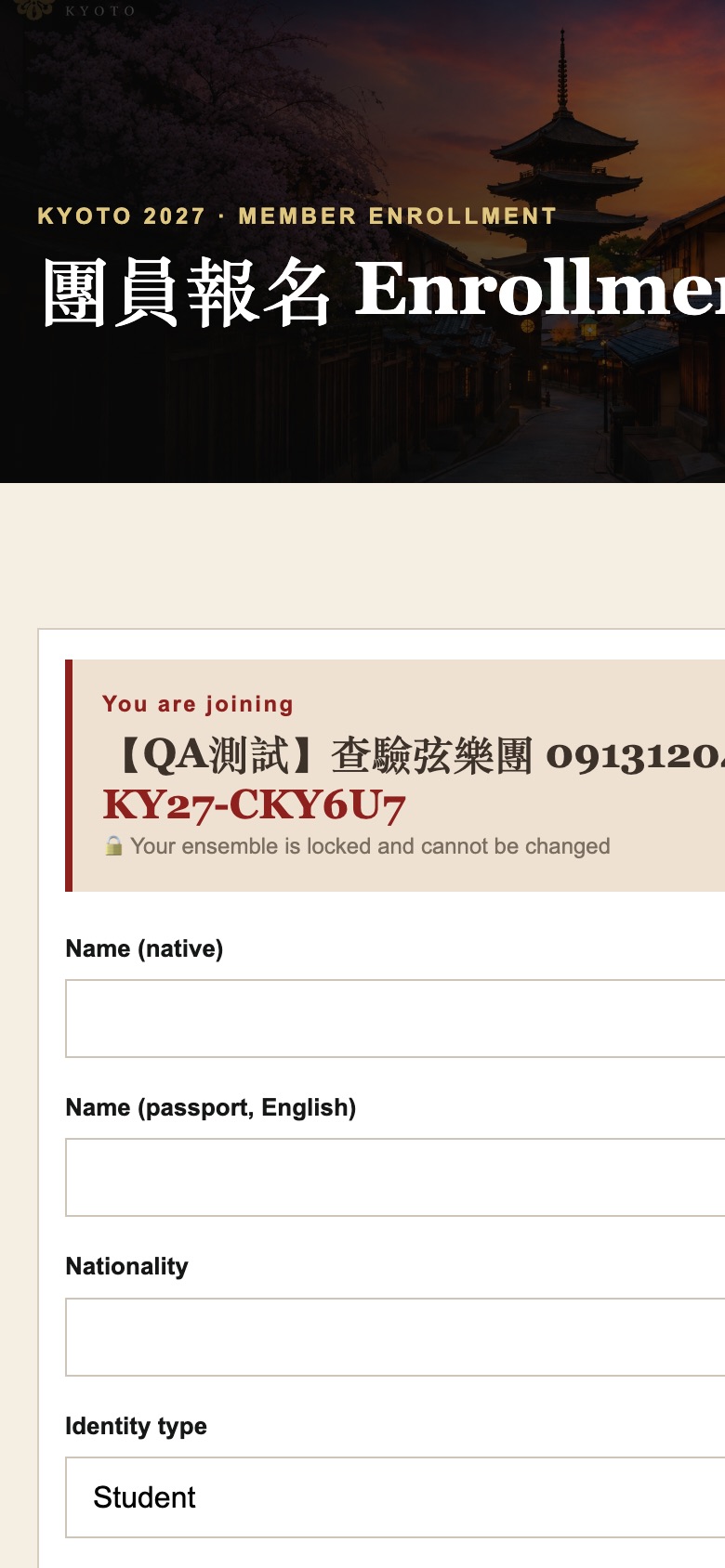
A member opens the invite link: ensemble locked, personal details - 5Leader
The leader completes group details and repertoire, then submits
Under Group Registration enter the category, actual number of players, conductor and section layout, add repertoire (total duration and the category time limit are calculated automatically), upload group documents, accept the terms and submit.
The age group is determined from members’ dates of birth and confirmed by the Executive Committee.
Where to do this- Leader page → Group Registration
- Leader page entry: the approval email button, or Check Status ›
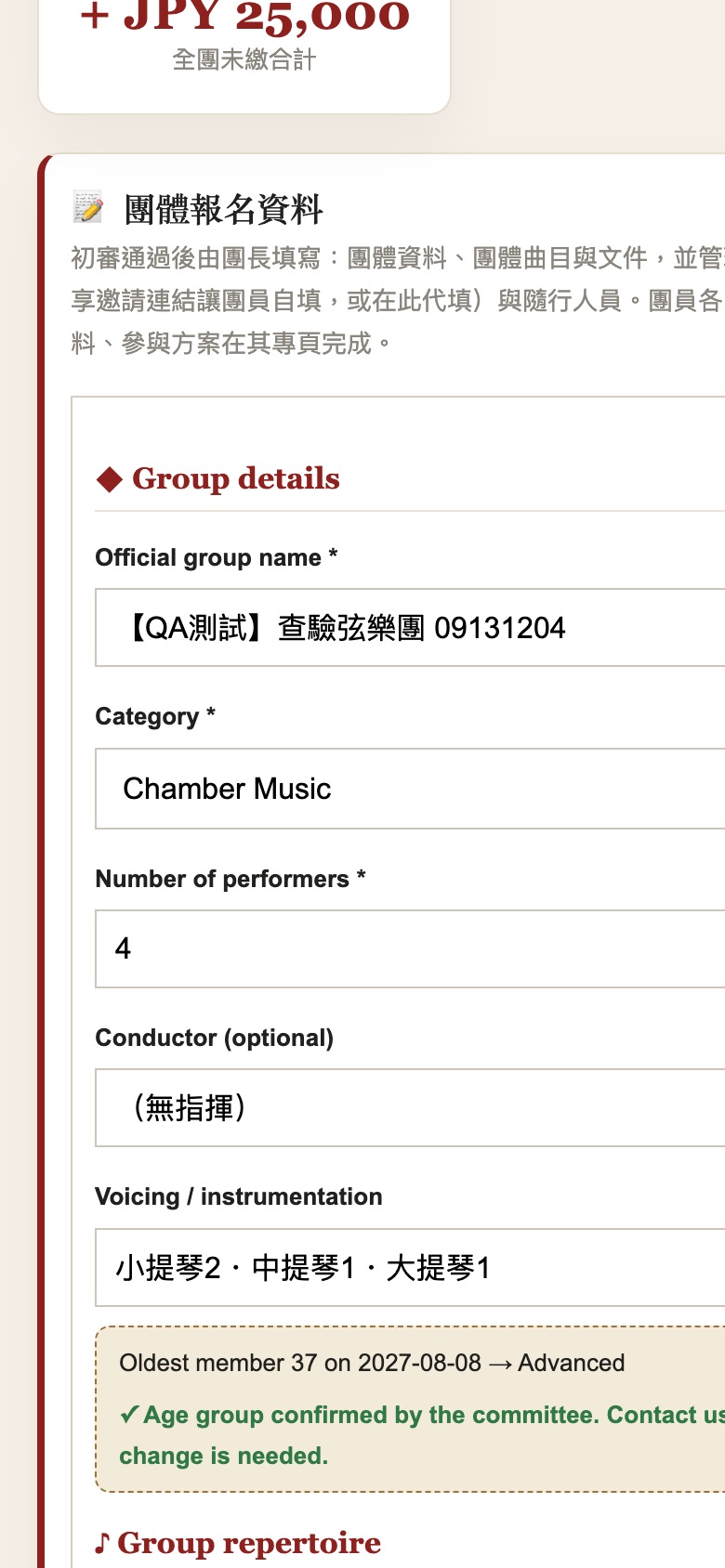
Group registration: category, size, conductor, sections, automatic age group 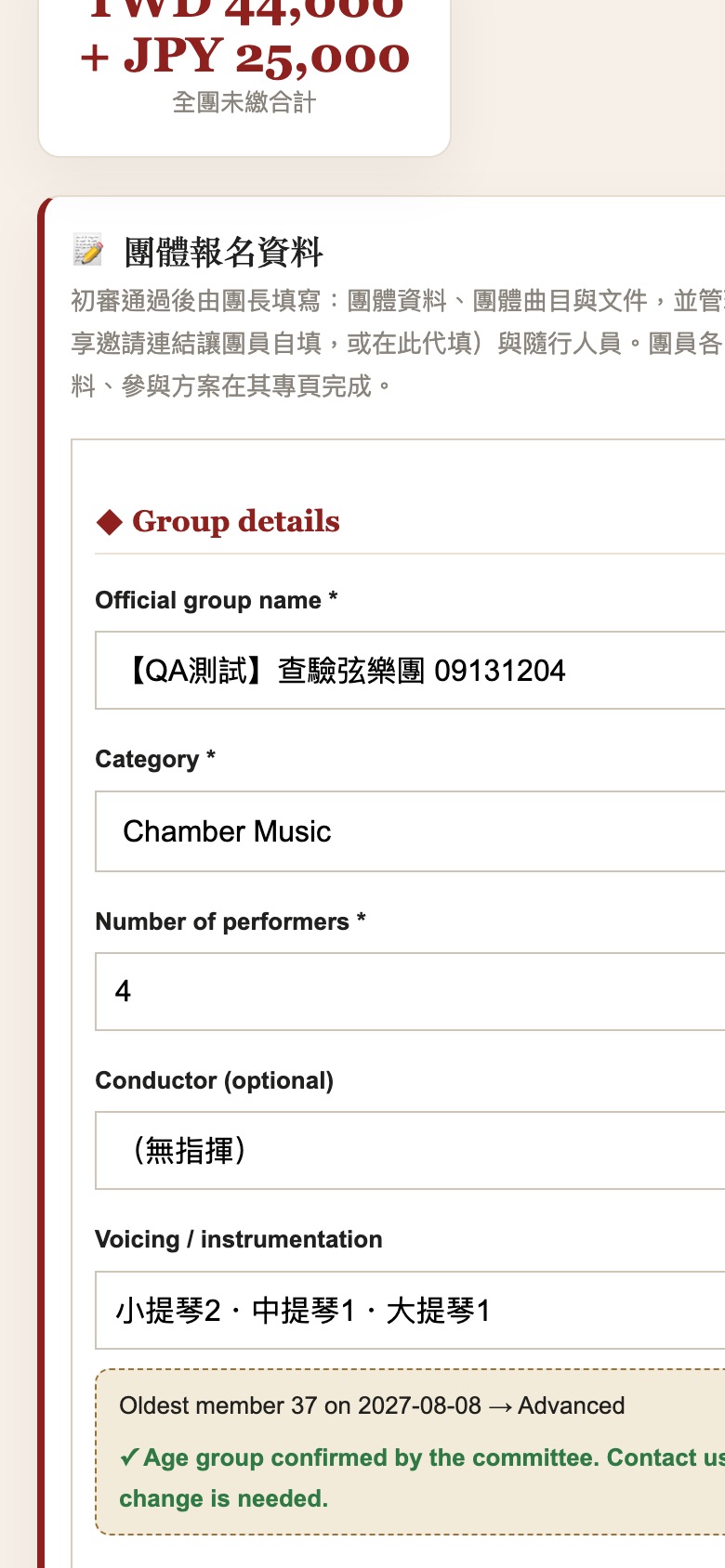
Save a draft or submit the group registration - 6Members / leader
Payment: each member pays, or the leader pays once for all
Each person’s fees are itemised on their own page under Fees & payment (plan, masterclass, instrument rental, massed ensemble…), priced per person. Members can transfer individually, or the leader uses Group collective payment to transfer the group total once and record it.
Bank details, SWIFT and the “name + last five digits” reference rule are on the page with one-tap copy.
Where to do this- Members: personal page → Fees & paymentYour personal page link is on the screen after you submit; afterwards it is next to your name on the leader page, so ask your leader
- Leader: leader page → Group collective payment

Group collective payment: domestic and international transfer details (illustrative) 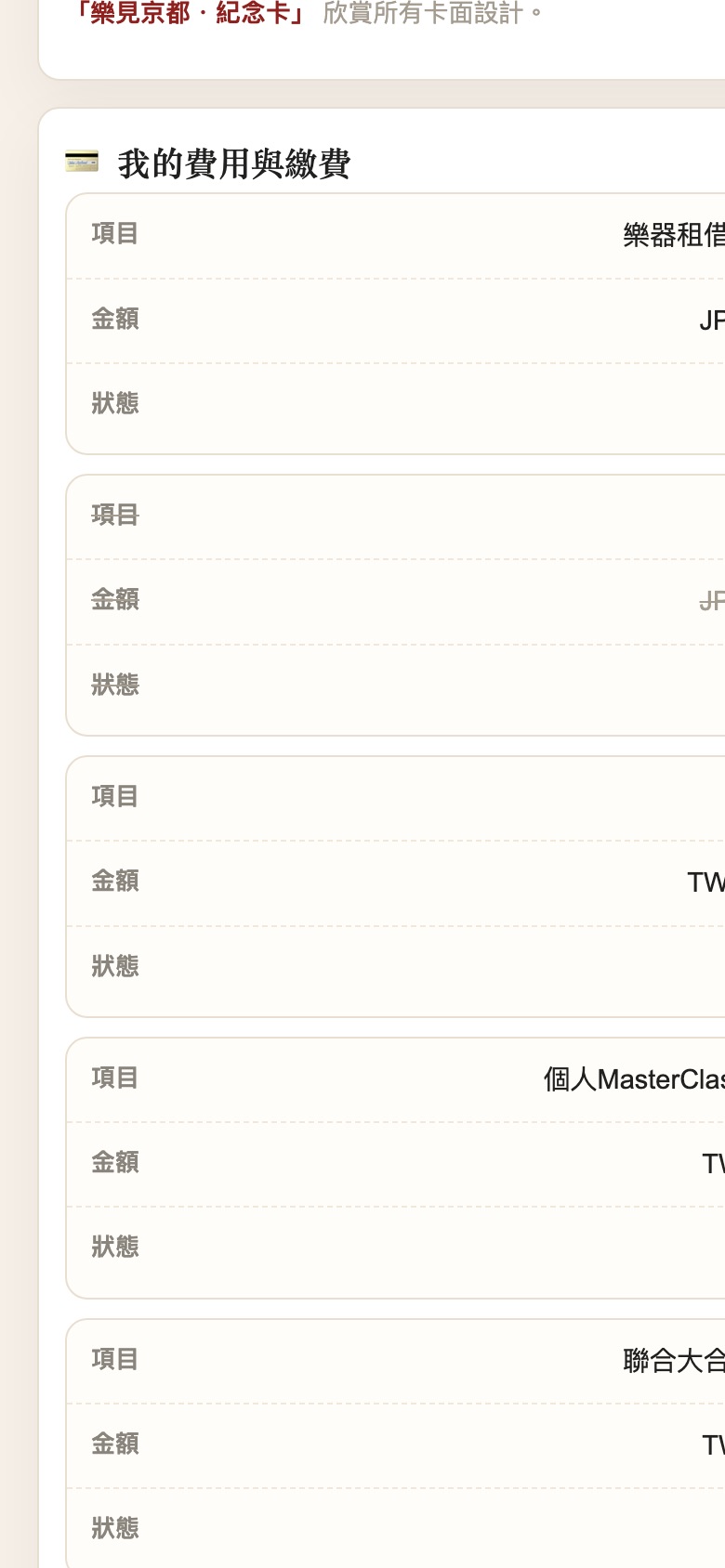
Member page: fees & payment, item by item - 7System
Once payment is confirmed, the e-credential goes live
When finance confirms receipt, each member’s e-credential unlocks automatically; show or scan it on site to check in and enter. Each check-in also generates a Kyoto-only commemorative card.
The leader receives a separate QR for whole-group check-in.
Where to do this- Members: personal page → E-credential
- Leader: leader page → whole-group check-in QR
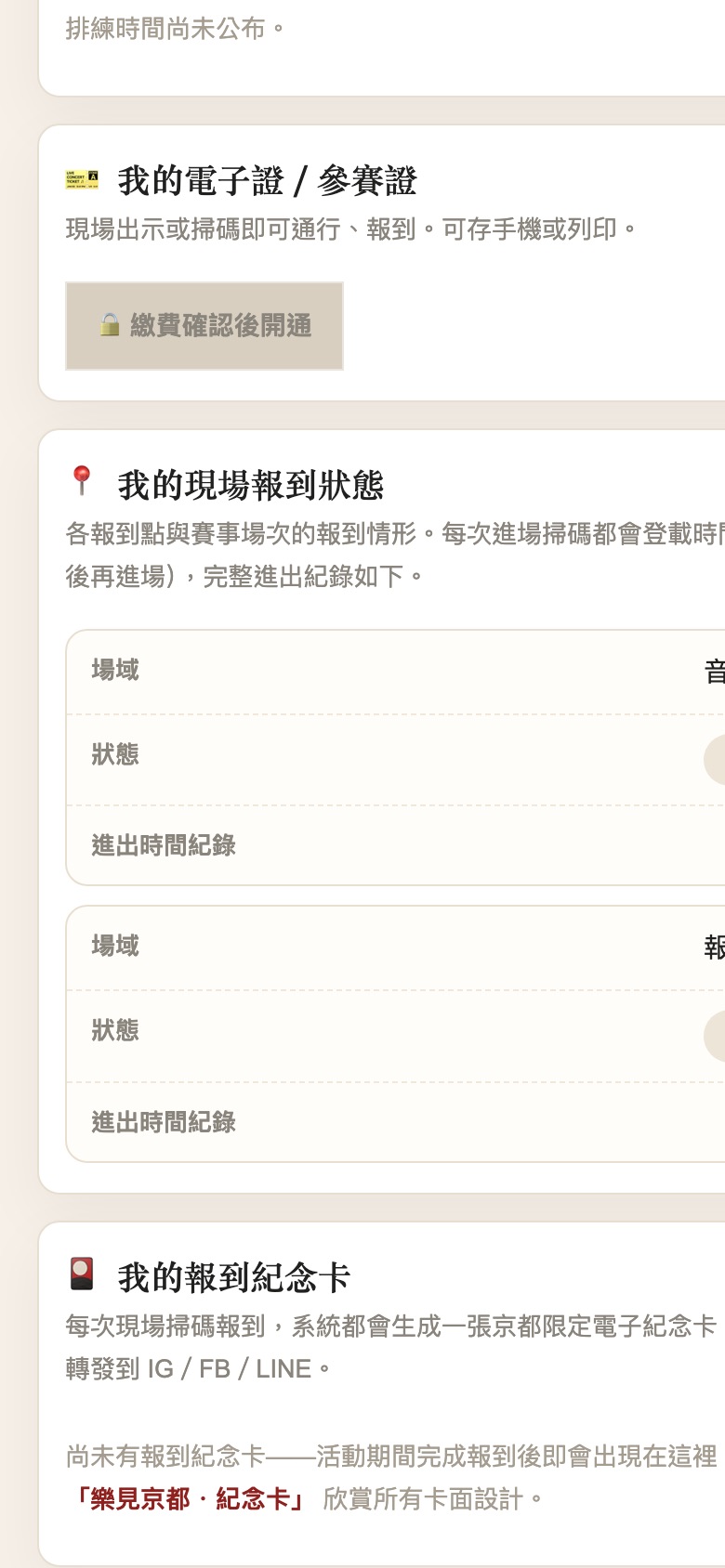
Before payment: credential locked; on-site check-in status and cards 
Sample e-credential: name, affiliation, QR, dates
Individual route · 6 steps
Soloists, singers and chamber musicians complete it themselves.
- 1The performer
Submit an individual application
On the Apply page choose “Individual” and enter your name, instrument or voice type, country, intended category, email, phone and a short profile; a video link can be attached.
You receive an application number and a confirmation email.
Where to do this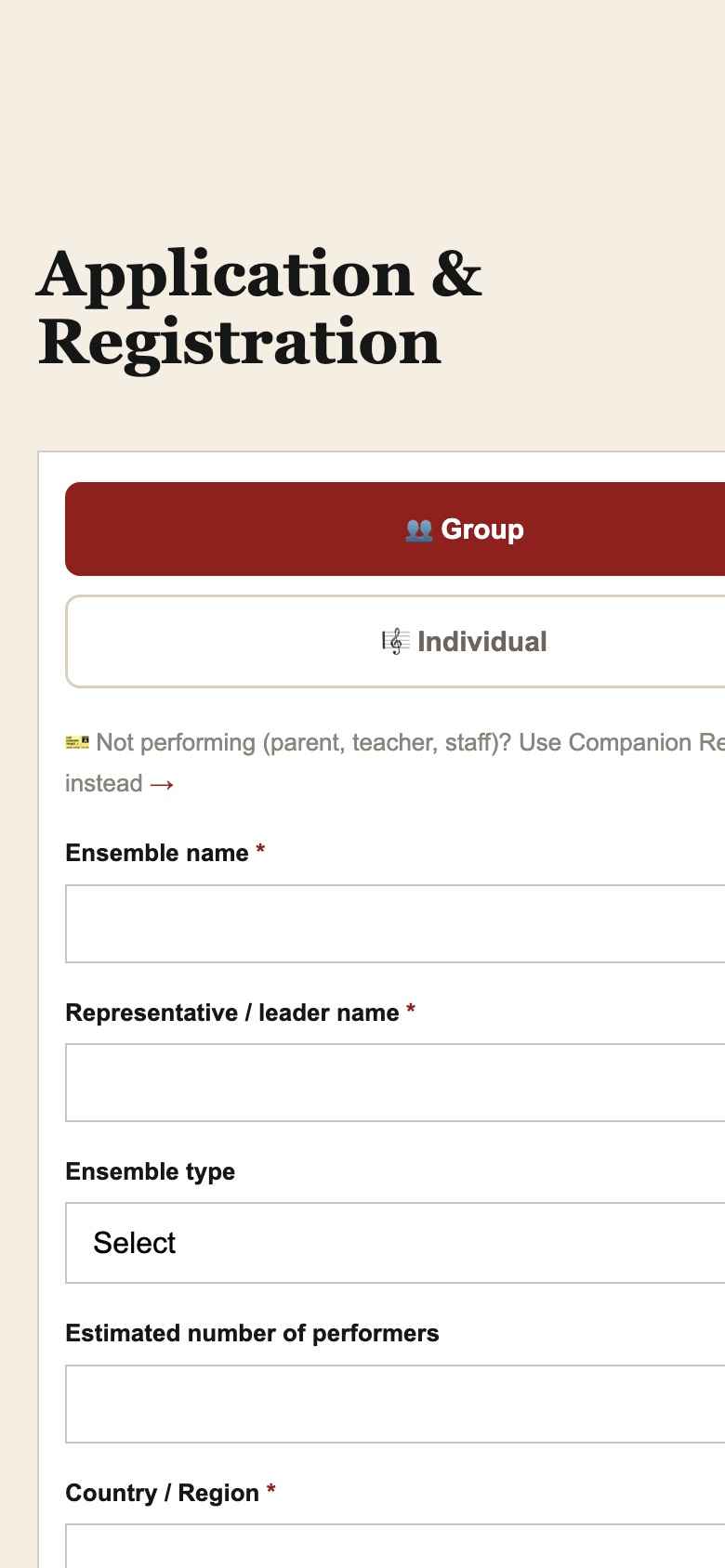
Apply page: choose Individual - 2Executive Committee
The Executive Committee reviews and emails the result
After review you receive the “Individual application approved” email with your personal page link.
Check the status any time with your number and email.
Where to do this- Check Status: enter your number + email ›
- The result is emailed to the address on the application
Status page 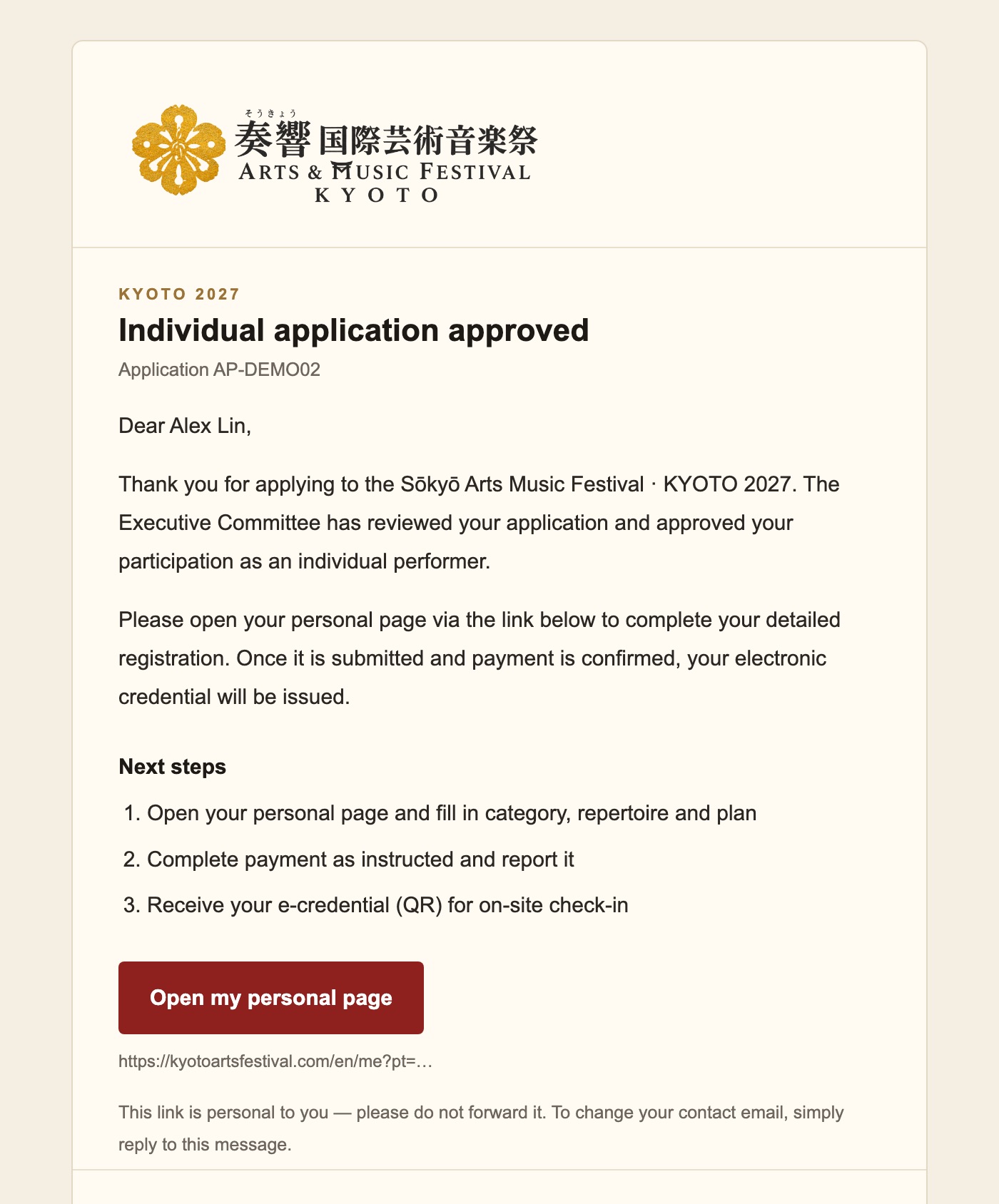
Approval email: number, next steps, personal page button - 3The performer
Open your personal page
The top shows your name, participant code, registration and payment deadlines and seven entries (e-credential, registration, payment, schedule, cards, assistance, downloads); below is the five-step progress bar.
The progress bar shows exactly where you are and what is still missing.
Where to do this- The “Personal page” button in the approval emailPersonal link, do not forward
- No email? Check Status lists your personal page link once approved ›
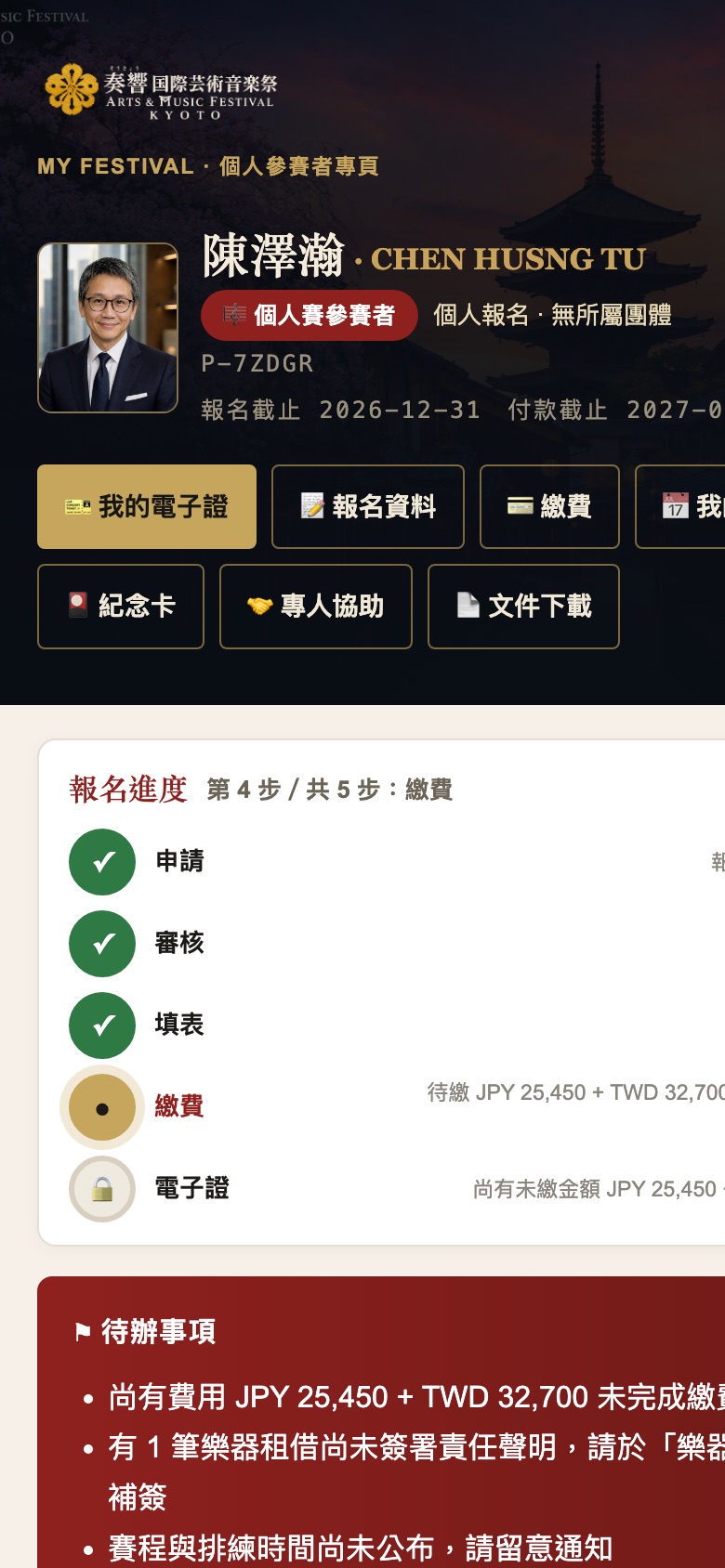
Personal page, top 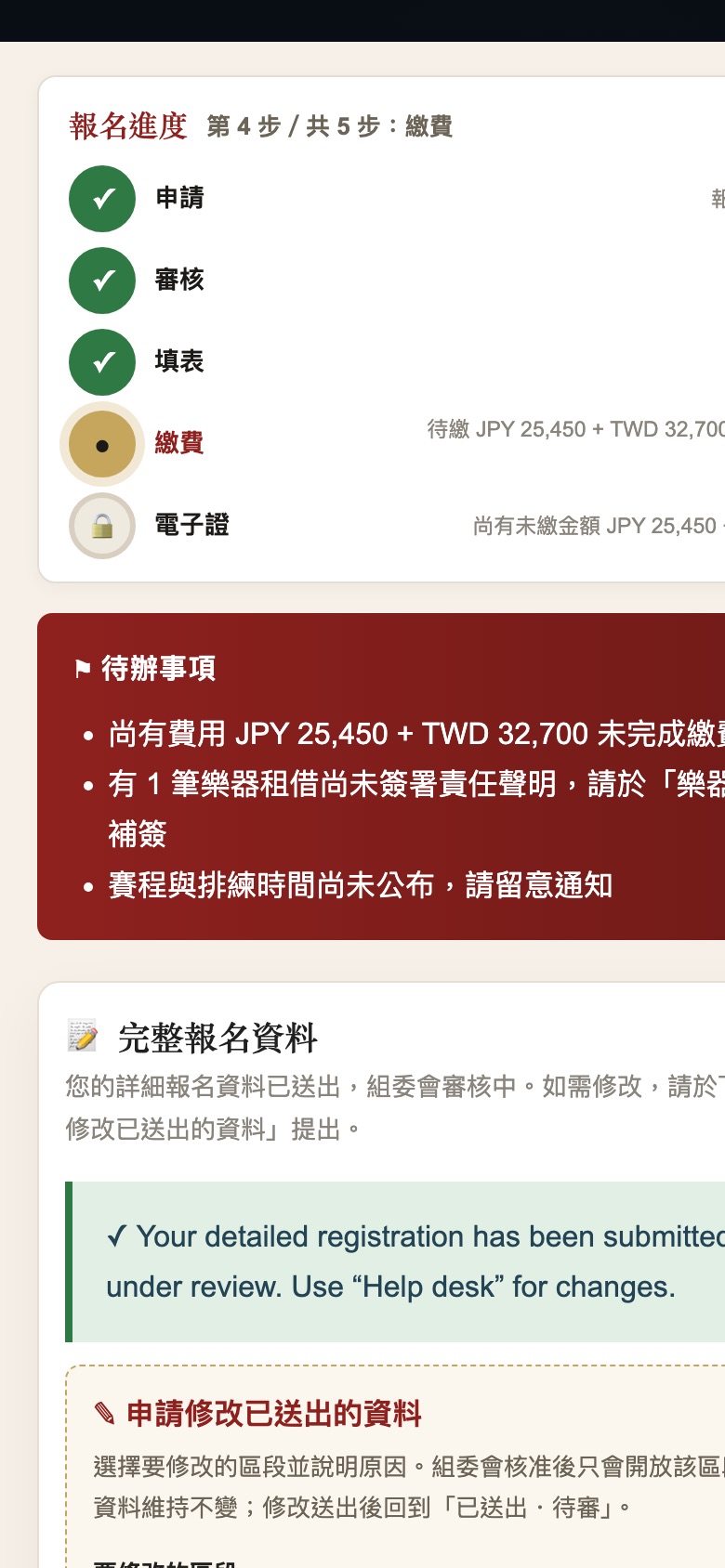
Progress: application → review → details → payment → e-credential - 4The performer
Complete your details, repertoire, plan and requests
Fill in each section: category and instrument, repertoire, participation plan, accommodation and transport, instrument rental, ID upload. To change something after submitting, use “Request a change” and name the section and reason.
ID documents are checked one by one by the Executive Committee; anything missing is flagged under Document review.
Where to do this- Personal page → Registration
- Personal page entry: the approval email button, or Check Status ›
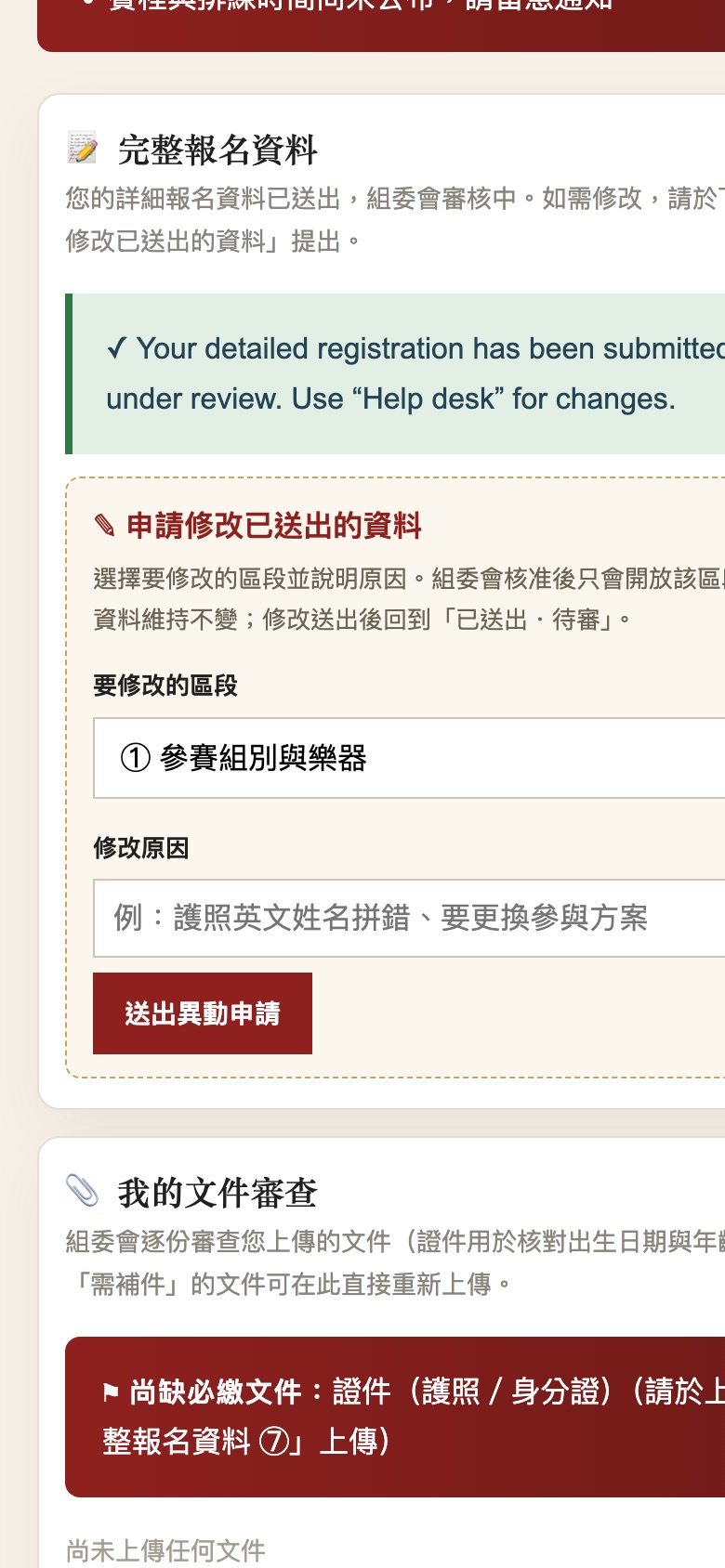
Full registration: submitted and under review; change request - 5The performer
Pay
Fees & payment lists each amount and its status (due, cancelled, confirmed). Transfer using the bank details on the page and record the transfer.
Fees are per person; there is no group price.
Where to do this- Personal page → Fees & payment
Fees & payment - 6System
Once payment is confirmed, the e-credential goes live
After confirmation the e-credential unlocks automatically; scan it on site to check in. Each check-in generates a Kyoto-only commemorative card.
Where to do this- Personal page → E-credential
E-credential: locked → active; check-in status Sample e-credential